How to Add Products to CommentSold in Bulk
By fAIshion team · · 2 min read
Upload the vendor's order to InventoryIQ just as it came, a PDF, a CSV file or photos of the line sheet, and it builds your CommentSold products for you. You check them on one review screen and push them, and they arrive unpublished until you publish them to your web, app or other channels.
 View full-size image
In short
- Upload the vendor's order to InventoryIQ.
- Choose whether each color is its own product.
- Set your markup and check sizes, stock and photos.
- Click Push to CommentSold, then publish when you're ready.
Decide how colors are listed
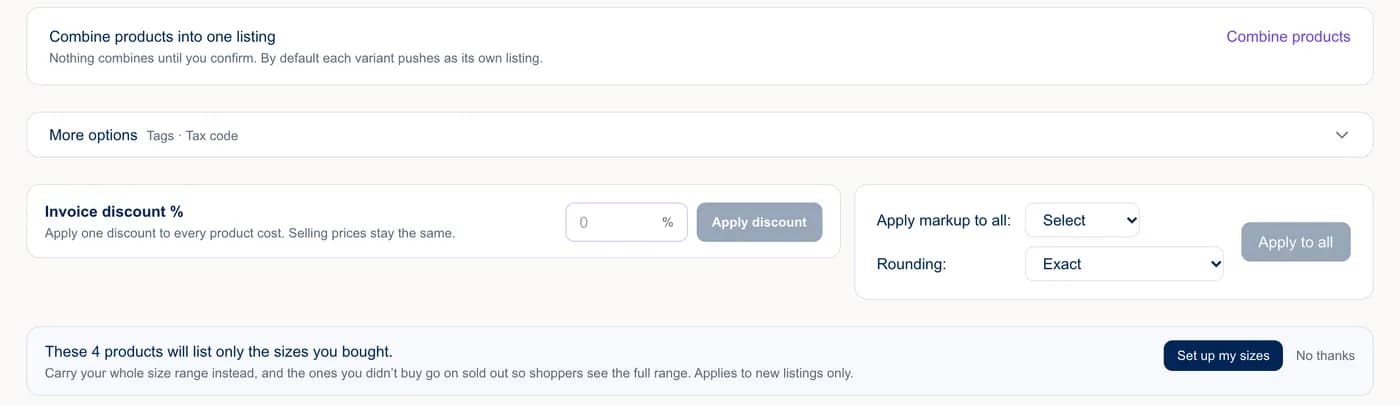
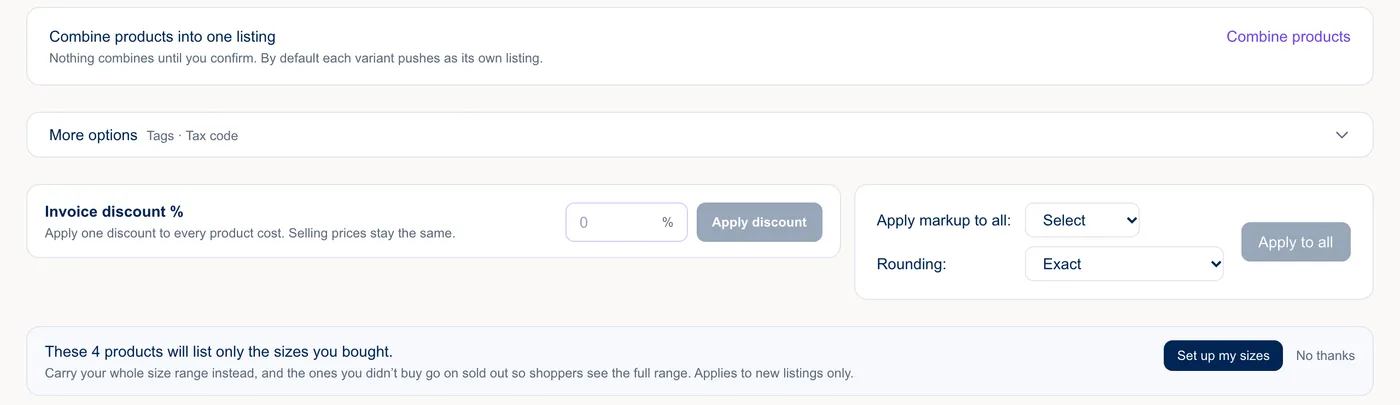
By default, each color is its own product. If you sell colors together, use Combine products on the review screen to make one product with a variant for each color and size. Nothing combines until you confirm it.
Review, push, then publish
Set one markup for the whole order with Apply markup to all, then check the sizes, quantities and photos.
Click Push to CommentSold. Each product arrives unpublished, with its name, description, SKU, price, cost, photos, a variant for each size, and the stock from your order.
If a style is already in your shop, InventoryIQ shows it to you first. Choose Add to existing stock, Push as new product or Skip restocks.
Doing it by hand?
Type each style into CommentSold with its sizes, stock, price and photos, checking every count against the vendor's order. Leave plenty of room before a show, because a wrong count is what your customers will see.
Common mistakes
- Wrong stock. CommentSold sells what the count says.
- Combining colors you sell separately.
- Publishing before the prices and photos are checked.
CommentSold shops sign up on our site, so see InventoryIQ pricing. If you also have a Shopify store, install InventoryIQ from the Shopify App Store. You pay through your Shopify bill, so there is nothing to set up with us.
On Shopify instead? Read how to add products to Shopify in bulk. For pricing, see how to set retail prices from wholesale cost.